




Perché iOS 26 è così lento?

L'aggiornamento di un iPhone a una nuova versione di iOS dovrebbe idealmente migliorarne le prestazioni, non peggiorarle. Tuttavia, dopo l'installazione di iOS 26, alcuni utenti potrebbero notare che il proprio iPhone risulta insolitamente lento o poco reattivo. Le app potrebbero impiegare più tempo ad aprirsi, le animazioni potrebbero risultare scattose, lo scorrimento potrebbe non essere fluido e la tastiera o i comandi touch potrebbero occasionalmente rispondere con un certo ritardo.
Il rallentamento riscontrato dopo un importante aggiornamento di iOS non significa necessariamente che il tuo iPhone abbia un problema hardware. Un nuovo sistema operativo può introdurre processi in background aggiuntivi, problemi di compatibilità, bug temporanei e altri fattori che influiscono sulle prestazioni. Fortunatamente, la maggior parte delle cause più comuni può essere risolta con alcuni semplici passaggi di risoluzione dei problemi.
In questa guida spiegheremo perché iOS 26 è così lento, presenteremo alcuni metodi rapidi per migliorarne le prestazioni e mostreremo uno strumento avanzato che può essere d'aiuto quando il problema è legato a problematiche più profonde del sistema iOS.
1. Perché iOS 26 è così lento?
Se il tuo iPhone è diventato lento dopo l'aggiornamento a iOS 26, una o più delle seguenti cause potrebbero esserne responsabili.
1.1 Elaborazione in background
Dopo un aggiornamento importante, iOS potrebbe continuare a eseguire attività in background, come l'indicizzazione dei file, l'organizzazione delle foto, l'aggiornamento dei dati e l'ottimizzazione delle risorse di sistema. Questi processi possono temporaneamente utilizzare ulteriori risorse di CPU e memoria, rendendo l'iPhone più lento.
1.2 Spazio di archiviazione limitato
Un iPhone con pochissimo spazio di archiviazione libero potrebbe presentare problemi di prestazioni. iOS necessita di spazio disponibile per file temporanei, dati delle app, processi di sistema e altre operazioni. Se la memoria è quasi piena, eliminare i file non necessari può essere d'aiuto.
1.3 Applicazioni obsolete
Alcune app potrebbero non essere inizialmente completamente ottimizzate per una nuova versione di iOS. Un'applicazione obsoleta può arrestarsi in modo anomalo, bloccarsi, consumare risorse eccessive o causare rallentamenti evidenti. L'aggiornamento delle app tramite l'App Store può risolvere i problemi di compatibilità.
1.4 Bug di iOS
Le nuove versioni del software possono talvolta contenere bug che interessano specifici modelli o funzionalità di iPhone. I problemi di prestazioni possono includere ritardi nella risposta al tocco, animazioni a scatti, arresti anomali delle app o blocchi temporanei. I futuri aggiornamenti di iOS potrebbero risolvere questi problemi.
1.5 Hardware più vecchio
Sebbene iOS 26 possa essere compatibile con il tuo iPhone, i software più recenti possono imporre requisiti diversi al dispositivo. Gli iPhone più vecchi potrebbero avere una minore potenza di elaborazione o memoria, il che può rendere più lente alcune animazioni e funzioni che richiedono molte risorse.
1.6 Scarsa salute della batteria
Anche una batteria usurata può contribuire a problemi di prestazioni percepiti. Quando lo stato di salute della batteria si è notevolmente deteriorato, iOS può utilizzare la gestione delle prestazioni in determinate situazioni per ridurre il rischio di arresti improvvisi.
1.7 Applicazioni che richiedono molte risorse
Alcune applicazioni, soprattutto quelle che coinvolgono l'editing video, i giochi, l'elaborazione di foto o altre attività impegnative, possono consumare notevoli risorse di sistema. Se i rallentamenti si verificano principalmente durante l'utilizzo di una particolare applicazione, quest'ultima potrebbe essere la causa del problema.
2. Come rendere iOS 26 meno lento?
Prima di prendere in considerazione metodi di riparazione più complessi, provate queste semplici soluzioni.
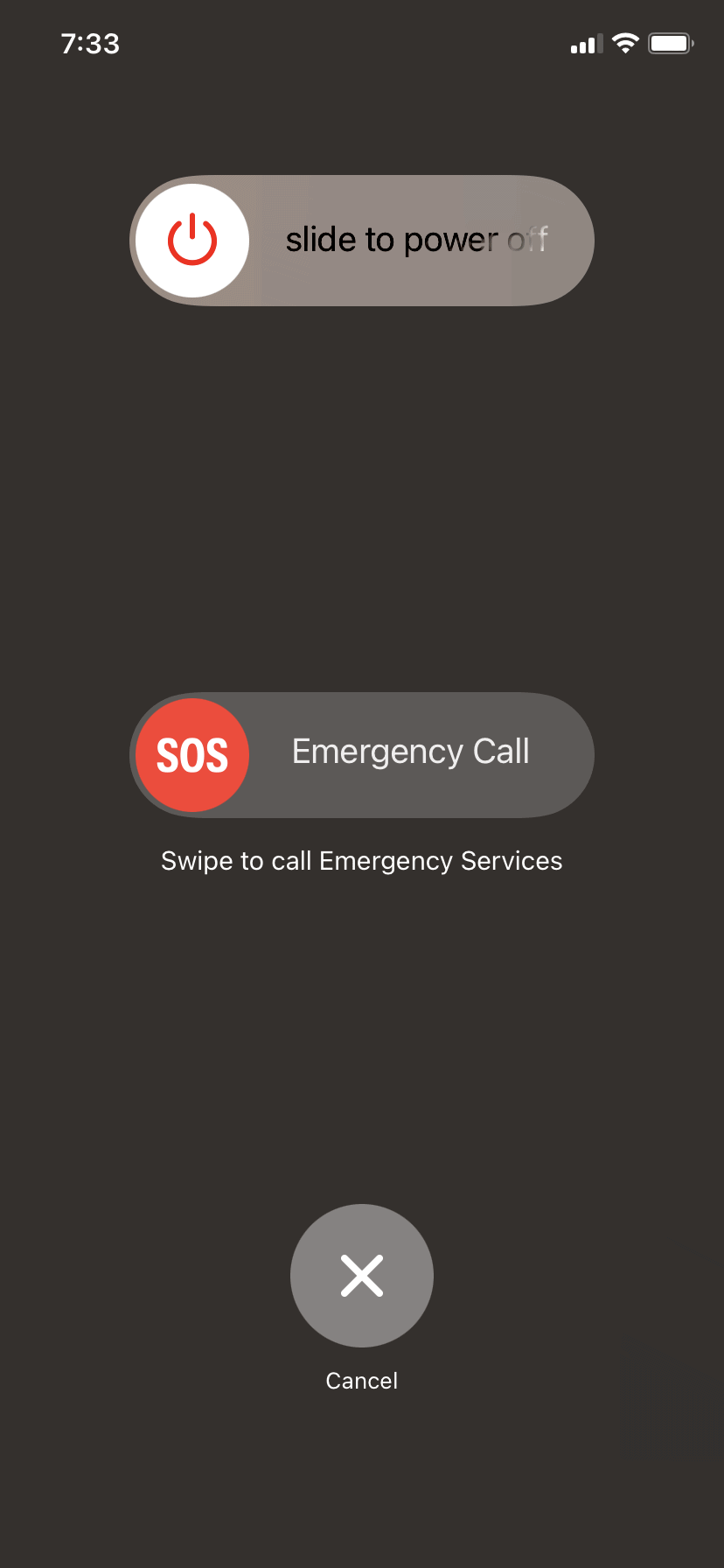
2.1 Riavvia il tuo iPhone
Riavviare l'iPhone può risolvere problemi temporanei e aggiornare le risorse di sistema. Spegni il dispositivo, attendi qualche secondo e riaccendilo.
2.2 Libera spazio di archiviazione
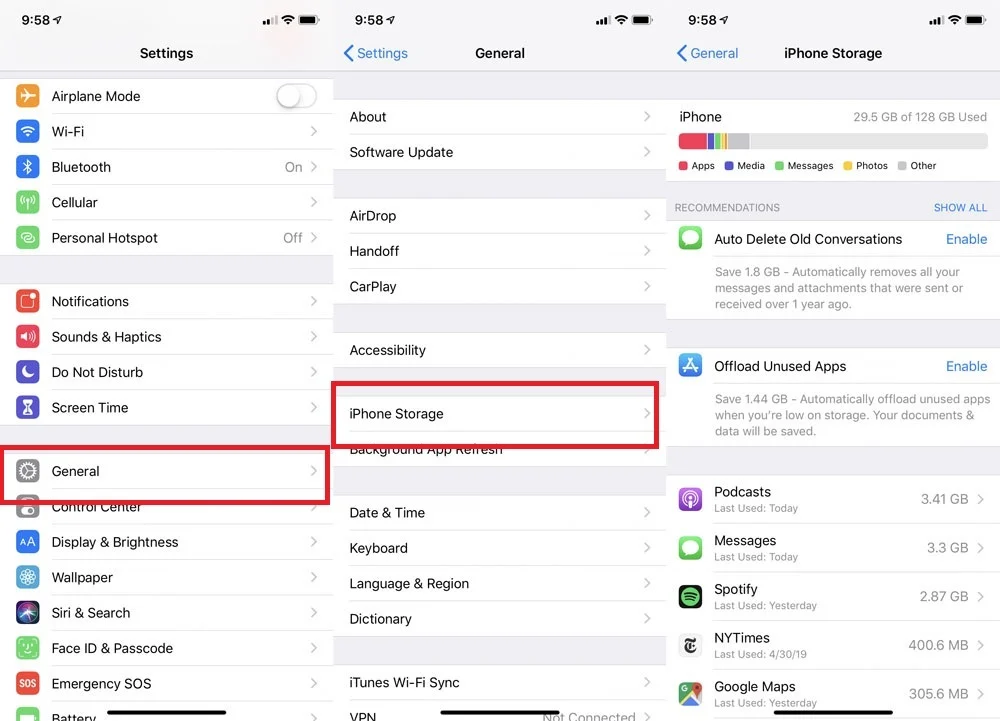
Vai a
Impostazioni > Generali > Archiviazione iPhone
Per vedere cosa sta occupando spazio. Rimuovi app inutilizzate, download di grandi dimensioni, video superflui e altri file che non ti servono più.
2.3 Aggiorna le tue app
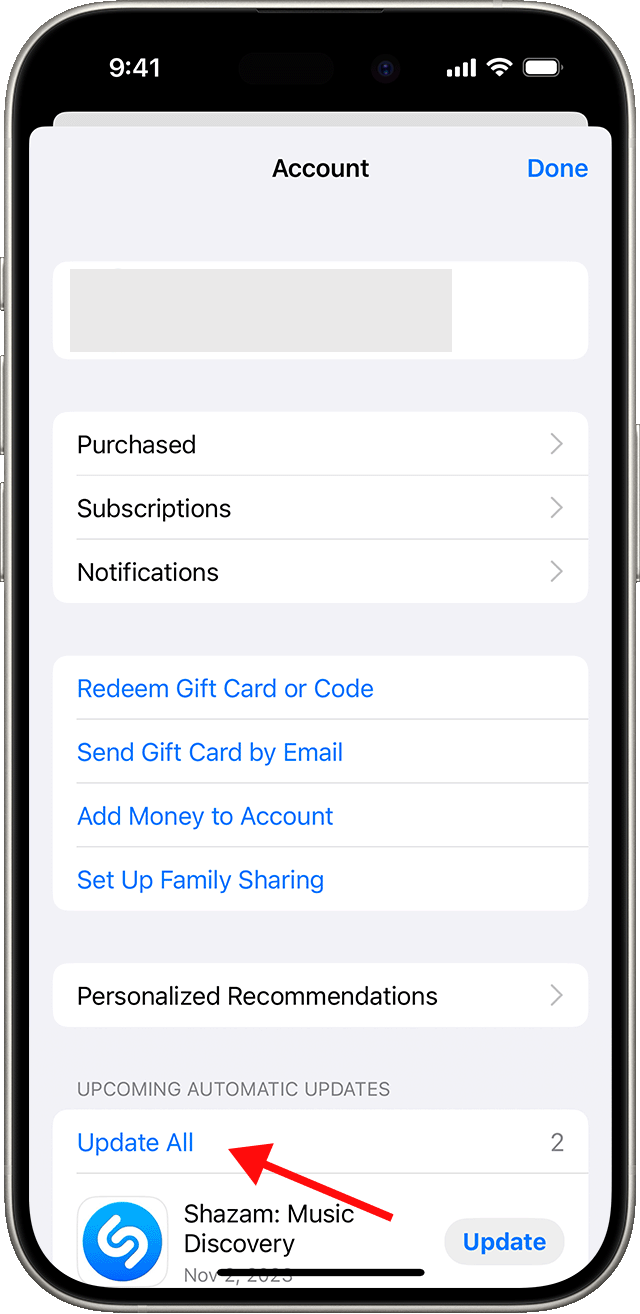
Apri l'App Store e installa gli aggiornamenti disponibili. Mantenere le app aggiornate può migliorarne la compatibilità e le prestazioni su iOS 26.
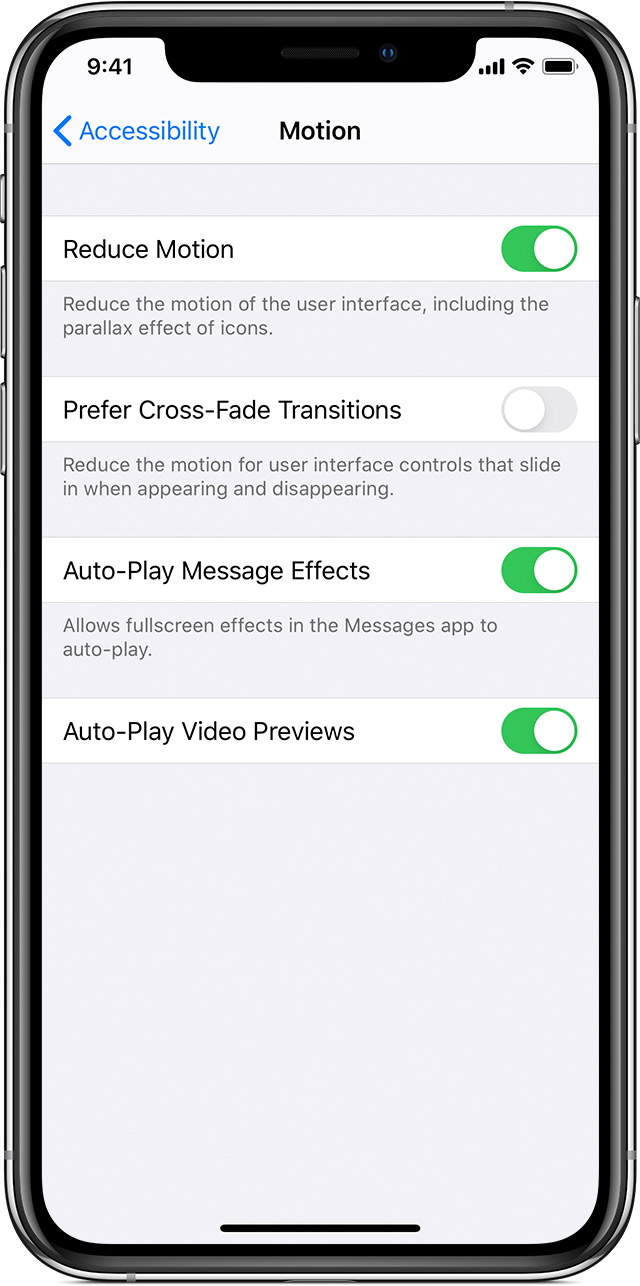
2.4 Ridurre gli effetti visivi
Se le animazioni e le transizioni risultano lente, abilita
Ridurre il movimento
Sotto
Impostazioni > Accessibilità > Movimento
Ridurre gli effetti visivi può rendere l'interfaccia più reattiva.
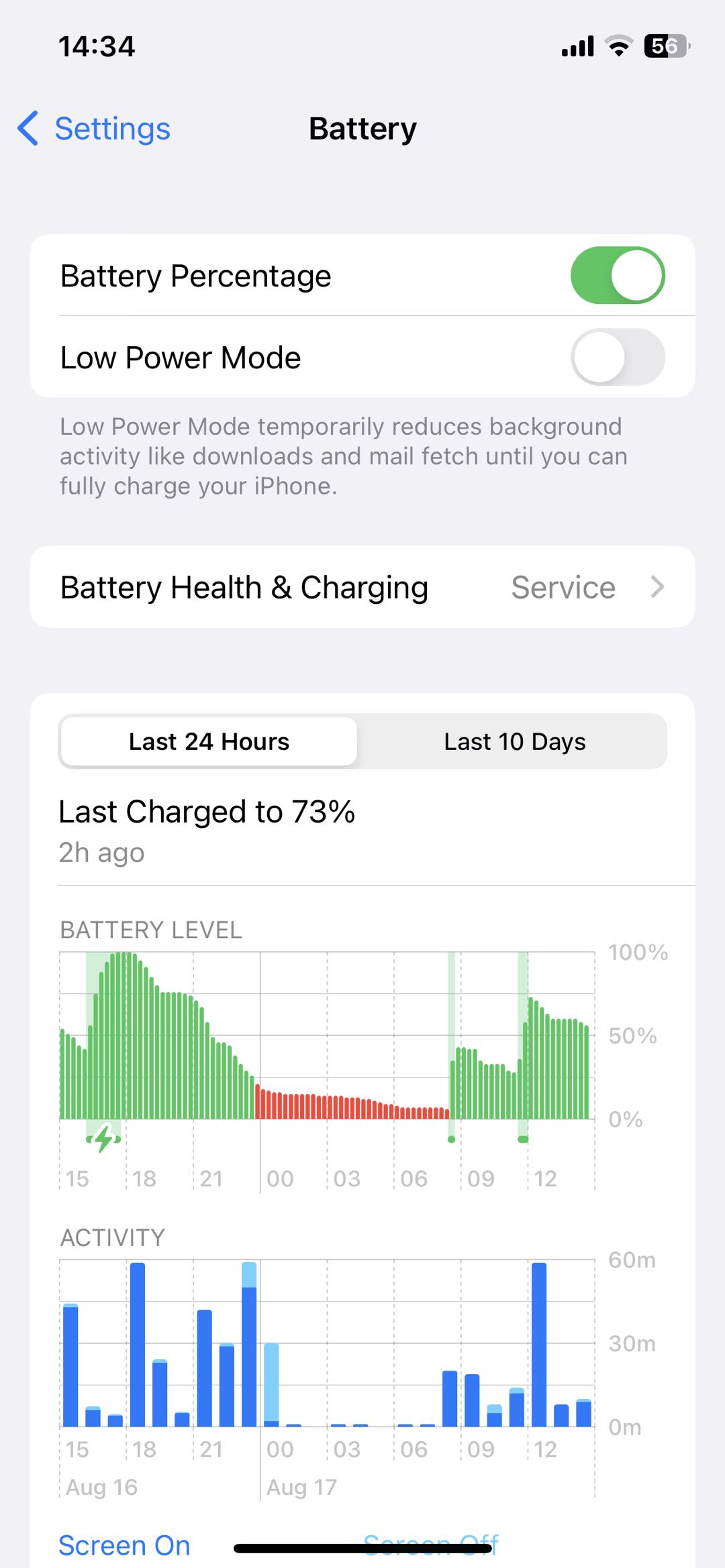
2.5 Verifica lo stato della batteria
Vai a
Impostazioni > Batteria > Stato della batteria e ricarica
e controlla lo stato della batteria. Se la batteria è notevolmente deteriorata, valuta la possibilità di farla riparare.
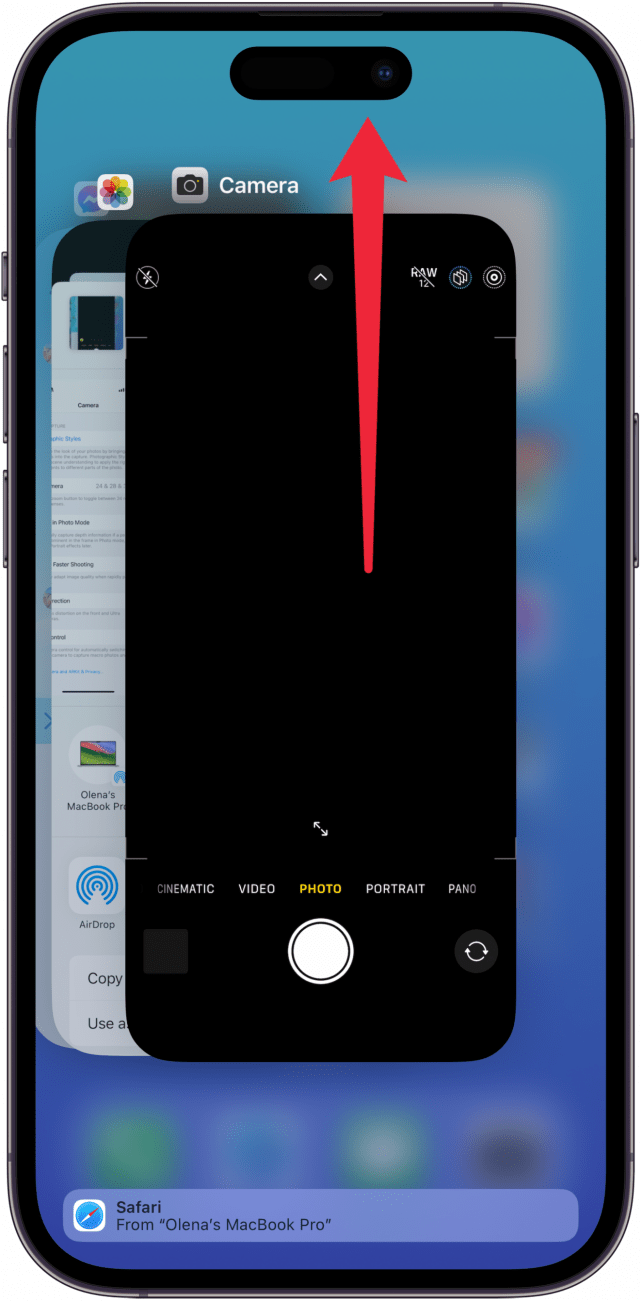
2.6 Chiudere le app problematiche
Se una particolare applicazione si blocca o diventa estremamente lenta, chiudila e riaprila. Se il problema persiste, aggiorna o reinstalla l'applicazione.
2.7 Attendi dopo l'aggiornamento di iOS
Se hai installato iOS 26 di recente, concedi al tuo iPhone un po' di tempo per completare l'indicizzazione e l'ottimizzazione in background. Le prestazioni potrebbero migliorare una volta terminate queste operazioni.
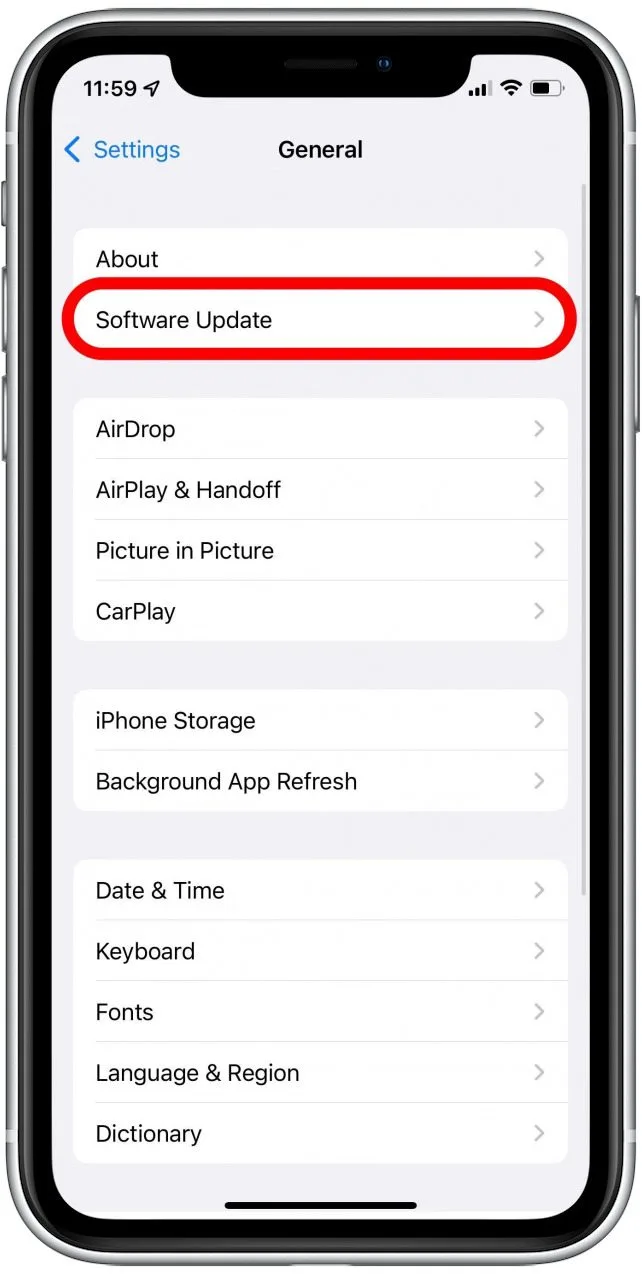
2.8 Installa gli aggiornamenti iOS disponibili
Vai a
Impostazioni > Generali > Aggiornamento software
e verifica se è disponibile una versione più recente di iOS. Apple potrebbe rilasciare aggiornamenti contenenti correzioni di bug e miglioramenti delle prestazioni.
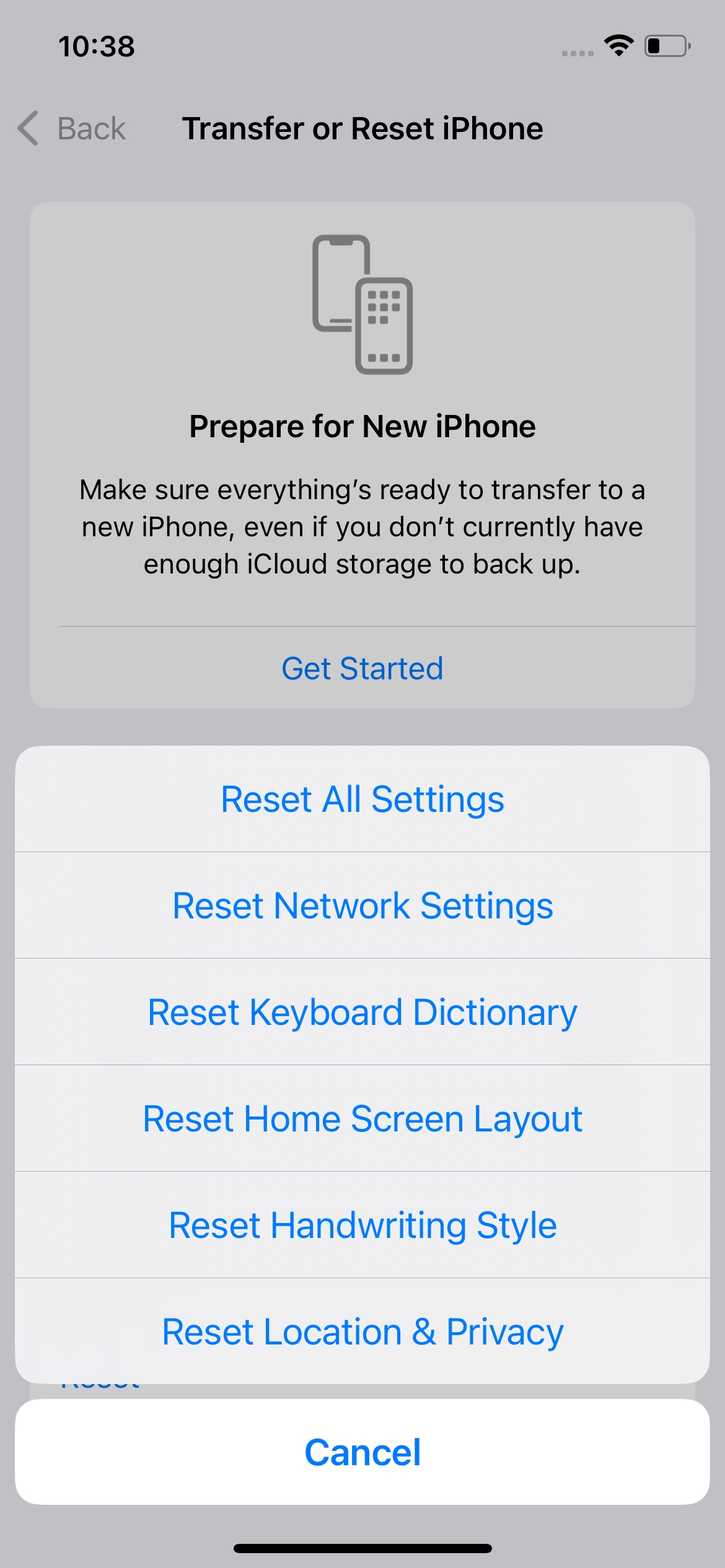
2.9 Reimposta tutte le impostazioni
Se il ritardo persiste, considera di ripristinare le impostazioni di sistema tramite
Impostazioni > Generali > Trasferisci o ripristina iPhone > Ripristina > Ripristina tutte le impostazioni
Questa operazione ripristina le impostazioni predefinite senza, di norma, rimuovere i contenuti personali.
3. Bonus: Risolvi i problemi di sistema iOS con AimerLab FixMate
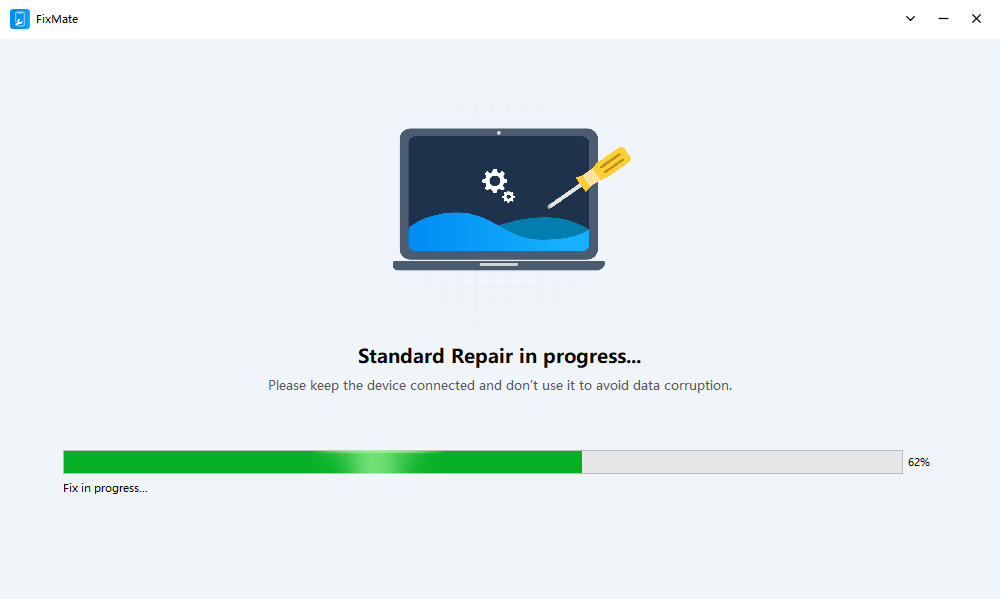
Se il tuo iPhone continua a essere lento anche dopo aver provato le soluzioni di base, il problema potrebbe essere legato a un errore di sistema iOS sottostante. In questa situazione, AimerLab FixMate Offre una soluzione desktop dedicata per la riparazione di vari problemi di sistema di iPhone e iPad.
FixMate è progettato per aiutare gli utenti a risolvere problemi come blocchi del sistema, comportamenti anomali, problemi di avvio e altri errori software. Il suo processo di riparazione guidato semplifica il tentativo di riparare un sistema iOS senza dover ricorrere a complicate procedure manuali di risoluzione dei problemi.
Come risolvere i problemi di sistema iOS con FixMate:
- Scarica e installa FixMate sul tuo computer Windows.
- Collega il tuo iPhone al computer utilizzando un cavo USB appropriato, quindi avvia FixMate e consentigli di riconoscere il dispositivo collegato.
- Seleziona l'opzione di riparazione appropriata in base al problema iOS che stai riscontrando.
- Segui le istruzioni visualizzate sullo schermo per impostare il tuo iPhone nella modalità richiesta e avviare il processo di riparazione.
- Attendi il completamento della riparazione, quindi riavvia l'iPhone e verifica se il problema di prestazioni è stato risolto.
4. Conclusione
Se iOS 26 risulta lento, soluzioni semplici come riavviare l'iPhone, liberare spazio di archiviazione, aggiornare le app e installare l'ultimo aggiornamento di iOS potrebbero migliorare le prestazioni. Tuttavia, se i rallentamenti, i blocchi o altri problemi di sistema persistono, AimerLab FixMate
offre un modo pratico per riparare i problemi del sistema iOS. Grazie al suo processo di riparazione guidato,
FixMate
può contribuire a ripristinare un'esperienza più fluida e stabile sul tuo iPhone.
- Come risolvere l'errore 1110 dell'iPhone?
- Come risolvere il problema del blocco "In attesa di un altro iPhone"?
- Come risolvere il problema del download di iOS 26 che impiega un'eternità?
- Come visualizzare i luoghi frequentati su iPhone?
- Come risolvere l'errore "Si è verificato un errore durante la verifica del codice di accesso del tuo iPhone"?
- Come risolvere il problema del blocco dell'opzione "Fine su nuovo iPhone"?
- Come falsificare Pokemon Go su iPhone?
- Panoramica dello spoofer di posizione GPS Aimerlab MobiGo
- Come cambiare posizione sul tuo iPhone?
- I 5 migliori spoofer di posizione GPS falsi per iOS
- Definizione del rilevatore di posizione GPS e suggerimento spoofer
- Come cambiare la tua posizione su Snapchat
- Come trovare/condividere/nascondere la posizione sui dispositivi iOS?