




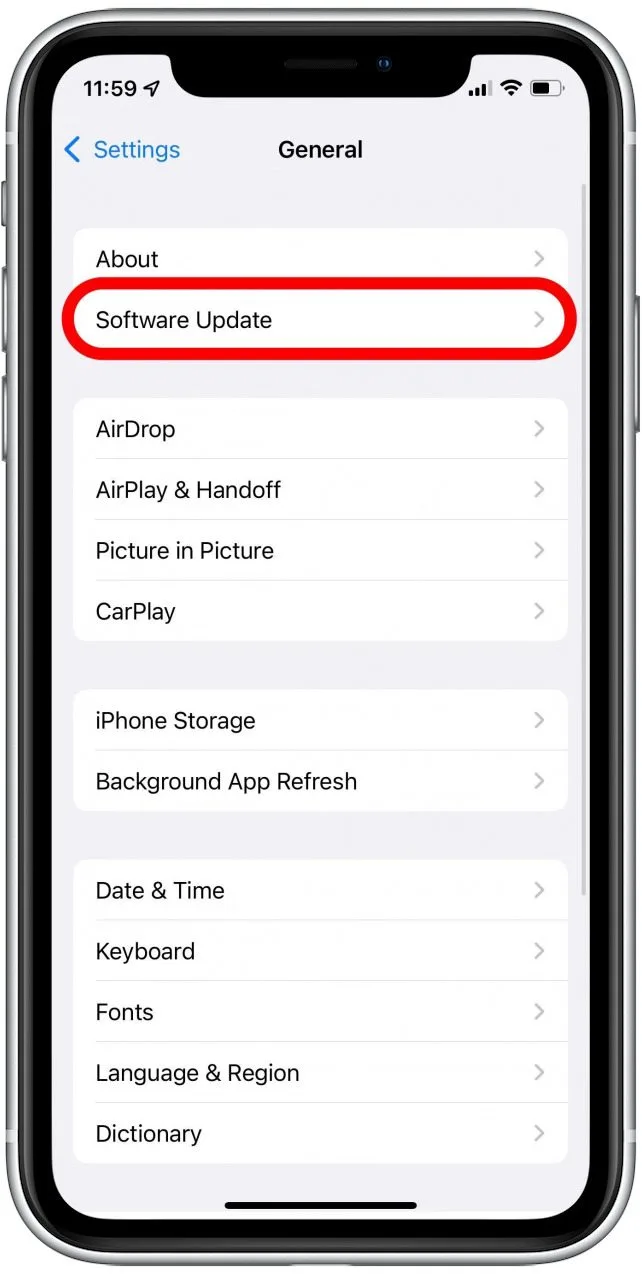
Aprire Impostazioni sul tuo iPhone, vai a Generale → Aggiornamento software , poi scarica e installa l'ultima versione di iOS.
Come risolvere il problema "Trova la posizione errata del mio iPhone"?
Contenuti
Trova il mio iPhone è uno degli strumenti più importanti di Apple per la sicurezza dei dispositivi, il tracciamento e la condivisione della posizione della famiglia. Ti aiuta a localizzare un dispositivo smarrito, monitorare la posizione dei tuoi figli e proteggere i tuoi dati in caso di smarrimento o furto del tuo iPhone. Ma quando Trova il mio iPhone mostra... sbagliato posizione, a volte a chilometri di distanza dal punto effettivo, diventa frustrante e persino allarmante.
Fortunatamente, i dati di posizione imprecisi di Trova il mio iPhone sono quasi sempre causati da problemi risolvibili relativi ai segnali GPS, alle reti Wi-Fi, a problemi software o alle impostazioni del dispositivo. In questa guida completa, scoprirai perché Trova il mio iPhone potrebbe mostrare una posizione errata e come risolvere il problema passo dopo passo.
1. Perché Trova il mio iPhone mostra la posizione sbagliata?
Trova il mio iPhone funziona combinando GPS, ripetitori cellulari, Bluetooth e reti Wi-Fi per individuare la posizione. Quando uno di questi sistemi fallisce o fornisce dati imprecisi, la posizione mostrata sulla mappa potrebbe essere errata.
Di seguito sono elencati i motivi più comuni per cui Trova il mio iPhone visualizza una posizione errata:
- Segnale GPS debole o bloccato
- Connessione Wi-Fi o di rete cellulare scadente
- Servizi di localizzazione o Posizione precisa disattivati
- Dispositivo offline, spento o batteria scarica
- Interferenza VPN o proxy
- Problemi software o iOS obsoleti
- Errori di calibrazione di Apple Maps
- Ostruzioni fisiche come edifici, tunnel o maltempo
Comprendere queste cause rende più facile risolvere il problema.
2. Come risolvere il problema "Trova la posizione errata del mio iPhone"?
Di seguito sono riportate soluzioni efficaci e pratiche per risolvere l'imprecisione di Trova il mio iPhone. È possibile eseguire tutte queste operazioni senza bisogno di conoscenze tecniche avanzate.
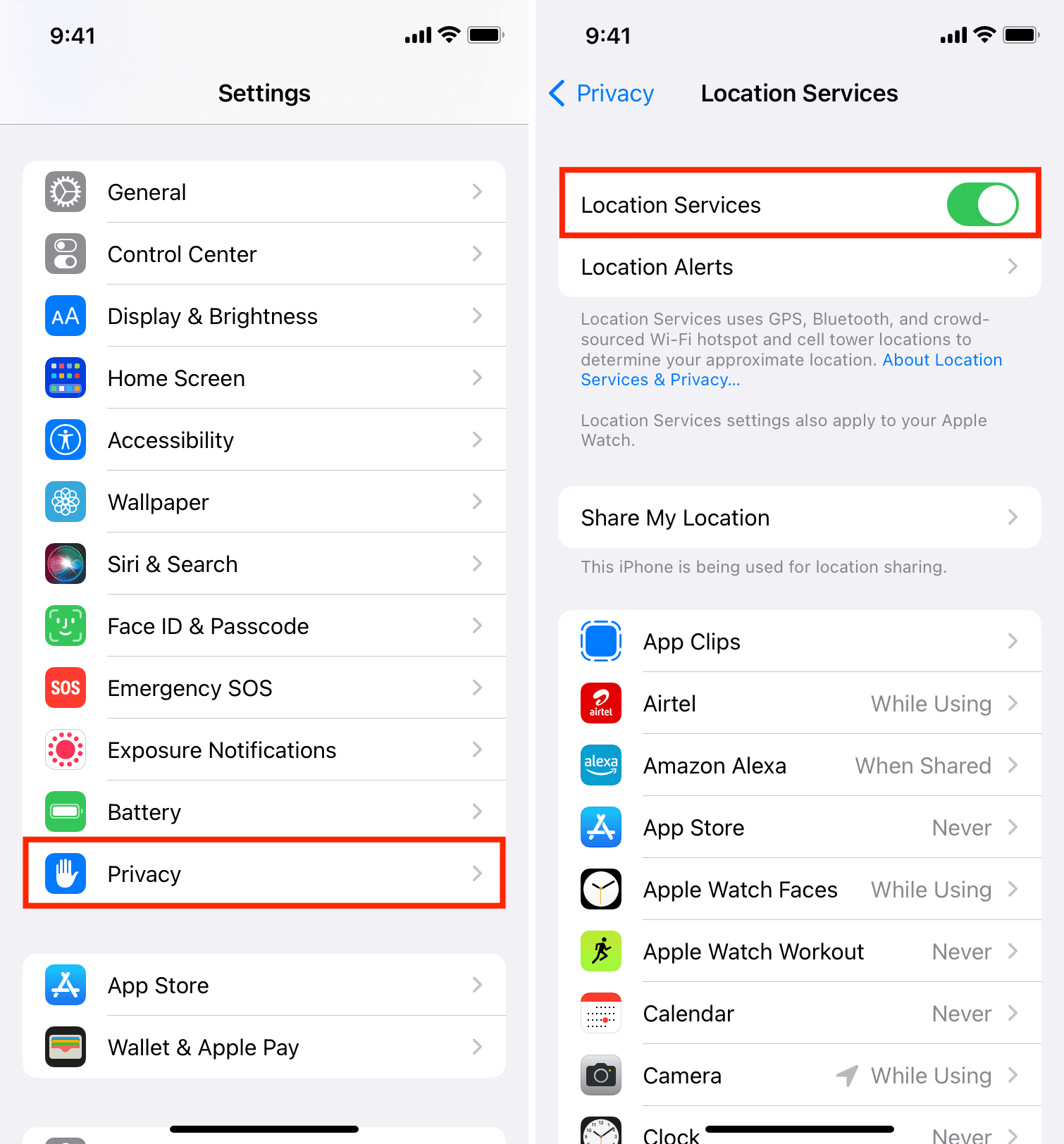
2.1 Attiva i servizi di localizzazione
Dov'è dipende interamente da queste impostazioni.
Aprire
Impostazioni →
Vai a
Informativa sulla privacy →
Selezionare
Servizi di localizzazione →
Attiva/disattiva
Servizi di localizzazione
SU
→
Scorri verso il basso e assicurati
Trova la mia
è impostato su
Sempre
.
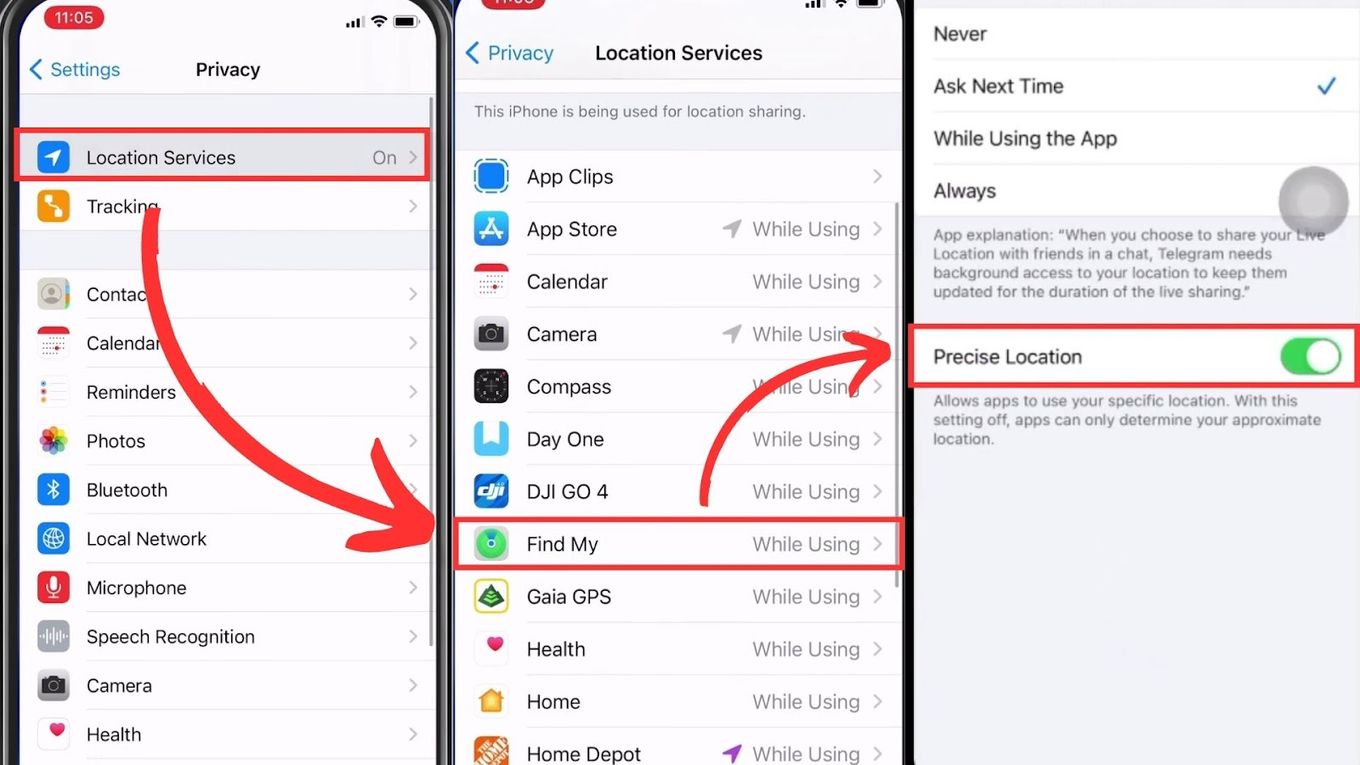
2.2 Abilita la posizione precisa
Se la posizione precisa è disattivata, Dov'è mostrerà solo una stima approssimativa dell'area.
Vai a
Impostazioni → Privacy e sicurezza → Servizi di localizzazione →
Rubinetto
Trova il mio →
Accendi
Posizione precisa
2.3 Attivare il Wi-Fi (anche senza connessione)
Il Wi-Fi migliora notevolmente la precisione della geolocalizzazione anche quando non sei connesso.
Scorri verso il basso per aprire
Centro di controllo →
Abilitare
Wifi
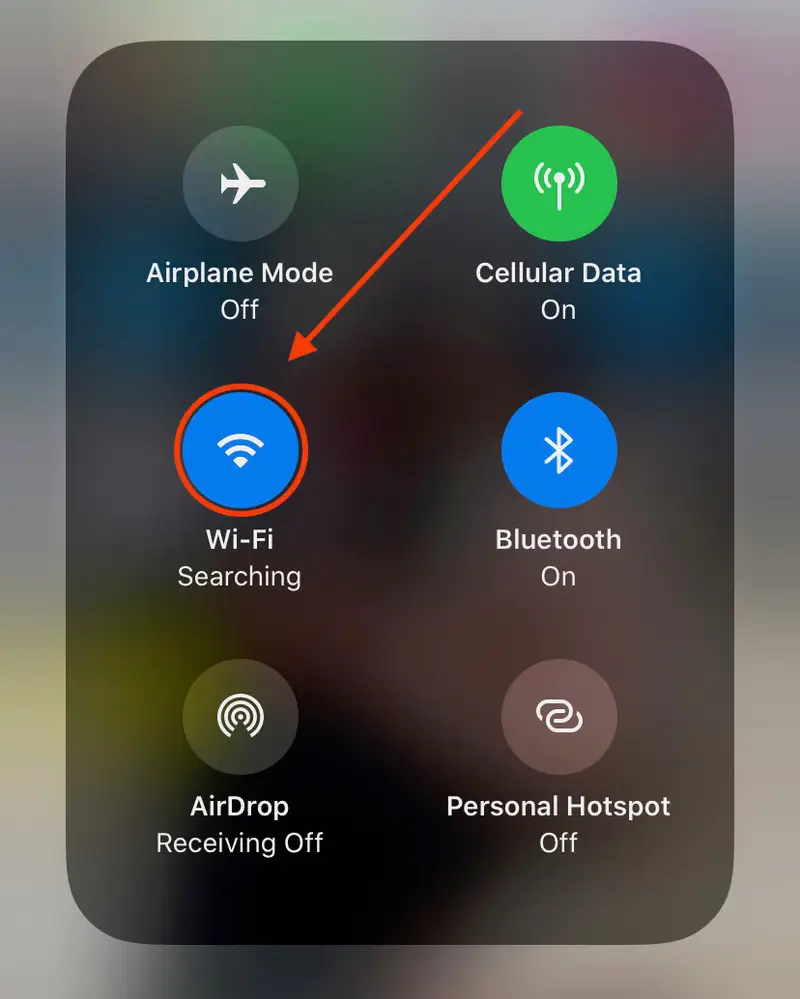
Ciò fornisce punti di triangolazione aggiuntivi per il tuo iPhone.
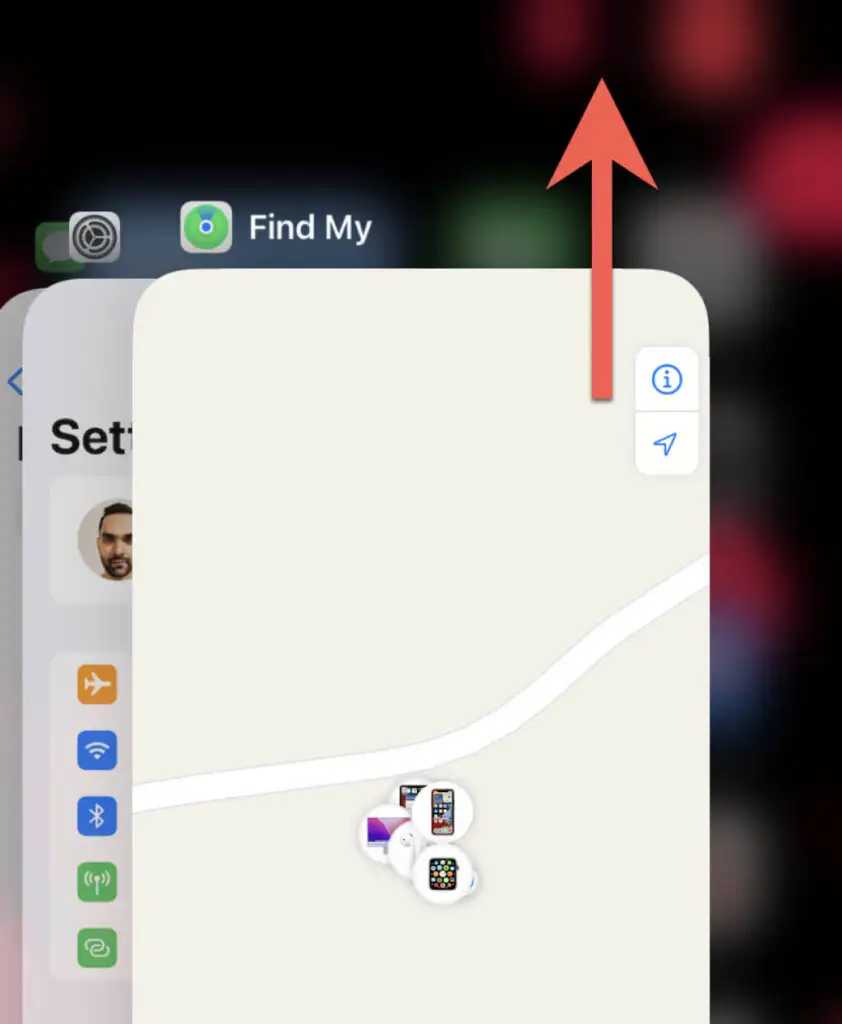
2.4 Aggiorna l'app Trova la mia
A volte Dov'è si blocca o memorizza nella cache i vecchi dati.
Accedi al
Selettore app →
Vicino
Trova il mio →
Riaprilo e aggiorna la mappa
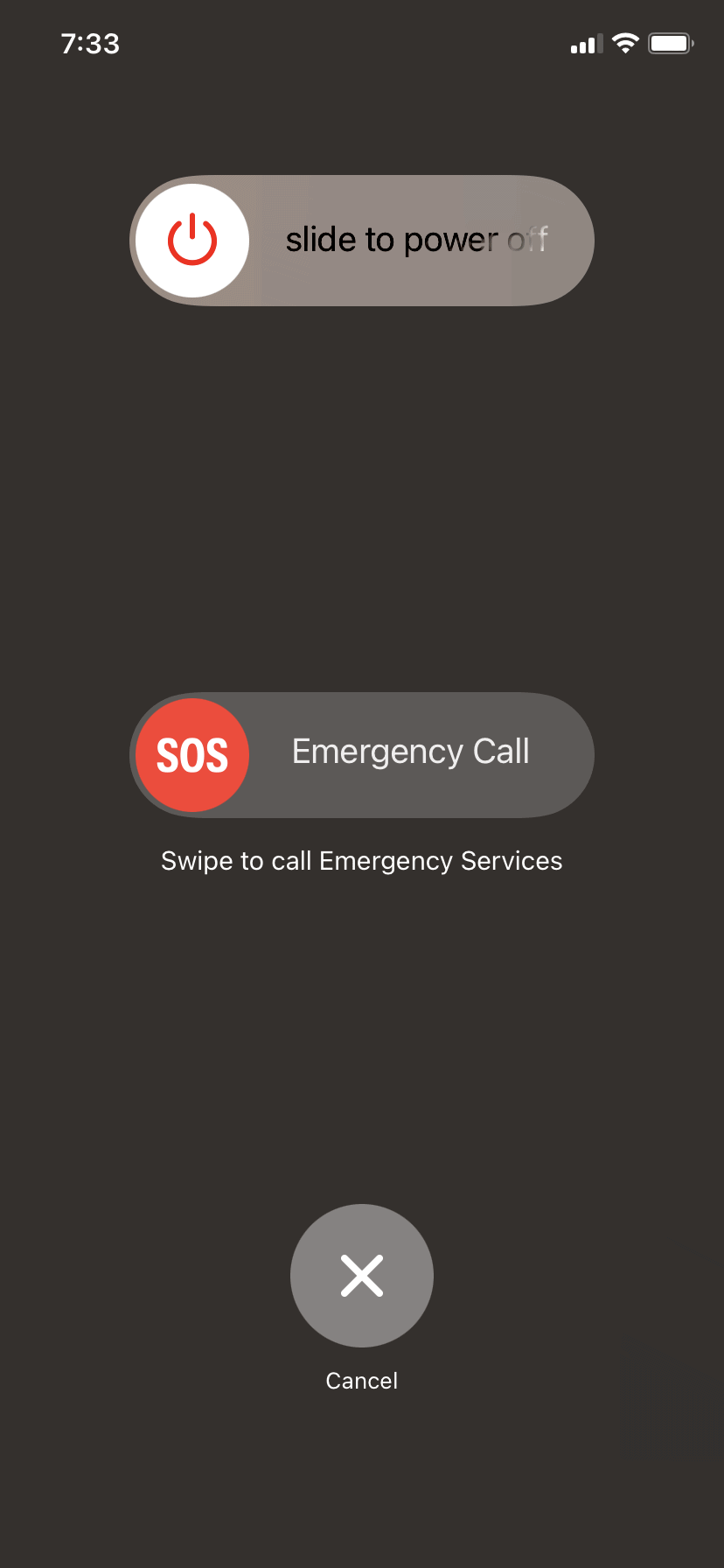
2.5 Riavvia il tuo iPhone
Un riavvio software ripristina tutte le connessioni di rete e i servizi GPS.
Presa
Accensione + Volume su →
Scorri per spegnere
→
Riaccendilo
2.6 Aggiorna iOS all'ultima versione
Gli aggiornamenti iOS risolvono regolarmente i bug del GPS e migliorano i servizi di localizzazione.
2.7 Reimposta le impostazioni di posizione e privacy
Se i dati GPS sono corrotti, questo ripristino spesso risolve il problema.
Vai a
Impostazioni → Generali → Trasferisci o ripristina iPhone
→
Reimposta posizione e privacy→
Ripristina impostazioni
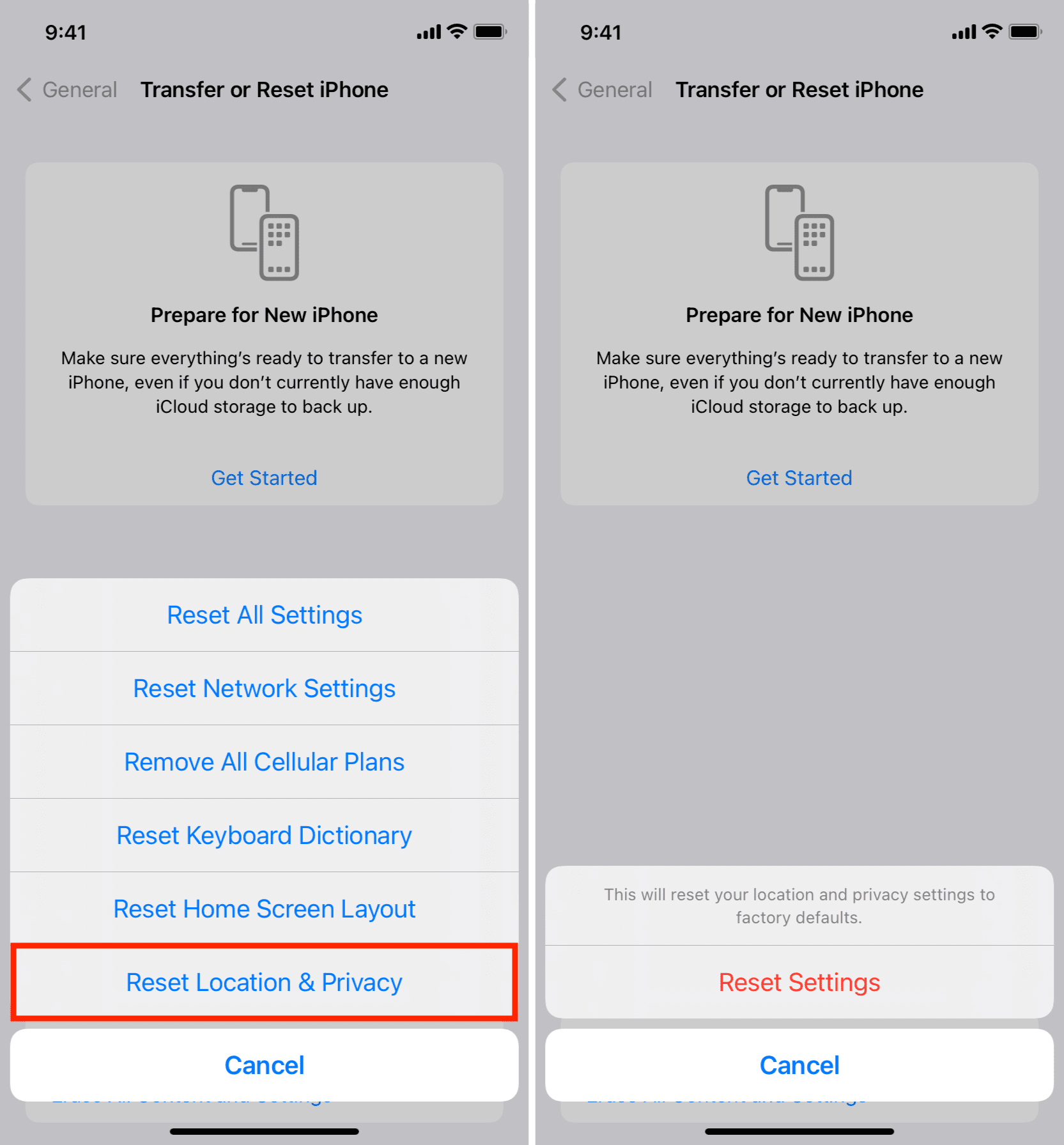
In questo modo vengono ripristinate le impostazioni di posizione predefinite.
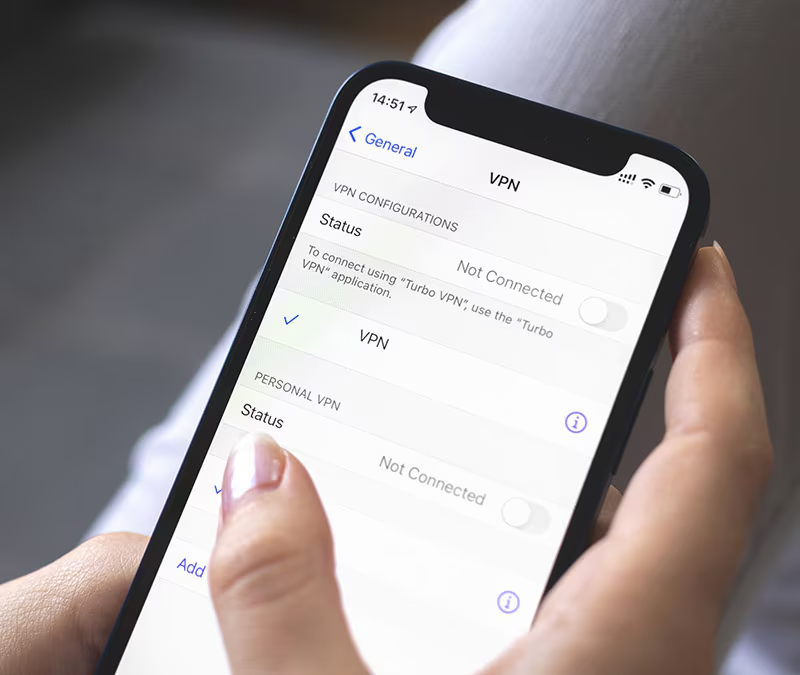
2.8 Disabilitare VPN o Proxy
A volte le VPN confondono Dov'è perché alterano il routing della rete.
Disattiva qualsiasi VPN attiva e controlla se Dov'è aggiornato correttamente
2.9 Assicurati che Trova la mia rete sia abilitato
La rete Dov'è consente il tracciamento offline tramite dispositivi Apple nelle vicinanze.
Vai a
Impostazioni → ID Apple → Dov'è →
Rubinetto
Trova il mio iPhone →
Accendi
Trova la mia rete
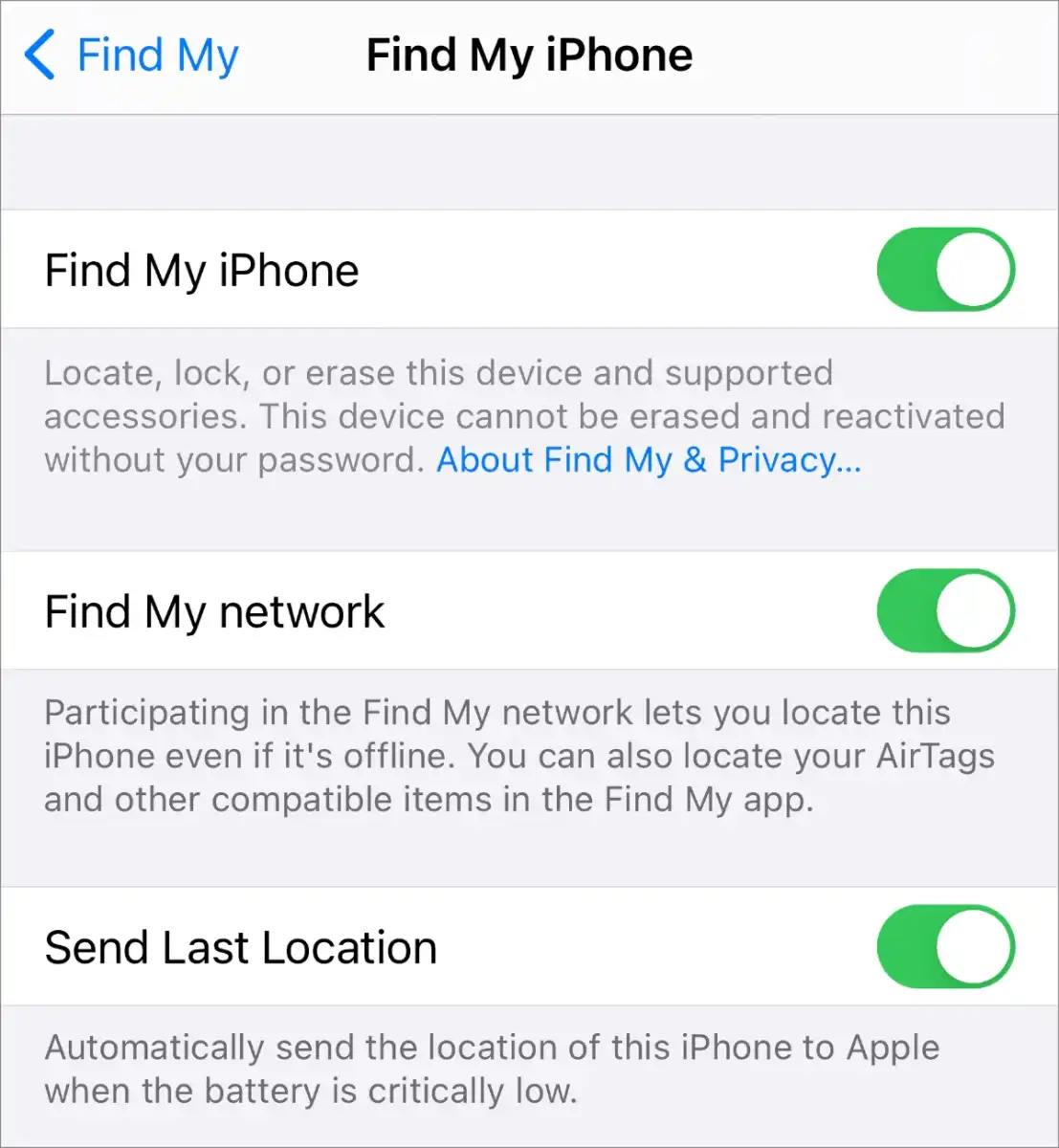
Ciò migliora la precisione quando il dispositivo non ha una connessione Internet.
2.10 Migliorare le condizioni del segnale GPS
Prova quanto segue:
- Spostarsi all'aperto
- Evitare tetti metallici o muri spessi
- Allontanarsi dai grandi edifici
- Connettiti a una rete Wi-Fi stabile
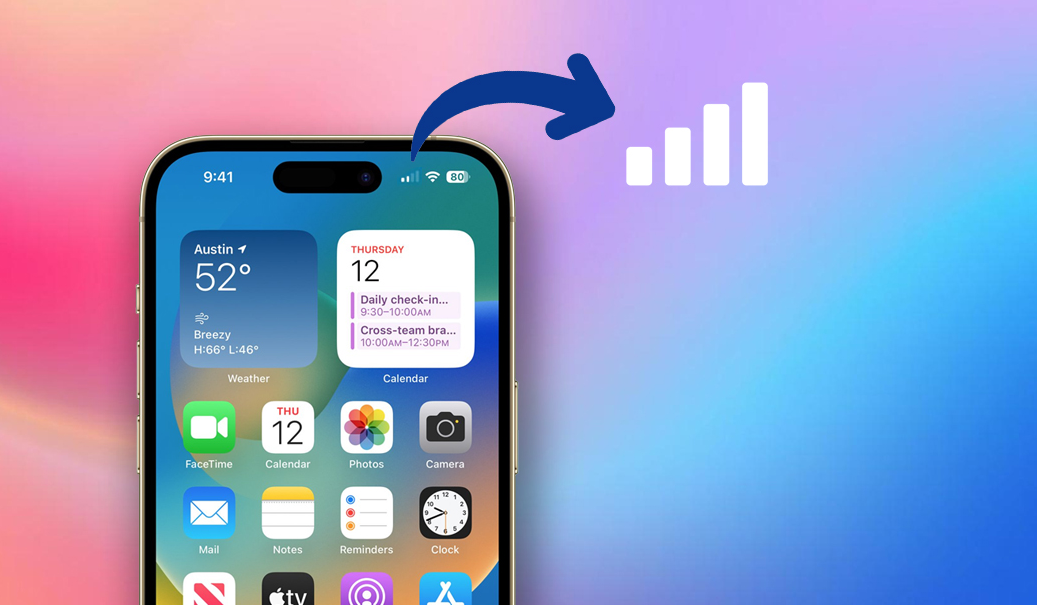
Queste semplici azioni migliorano notevolmente la precisione del GPS.
2.11 Accedi nuovamente al tuo ID Apple
Ciò forza una nuova sincronizzazione con i server di Dov'è.
Vai a
Impostazioni → ID Apple →
Rubinetto
Esci →
Accedi nuovamente
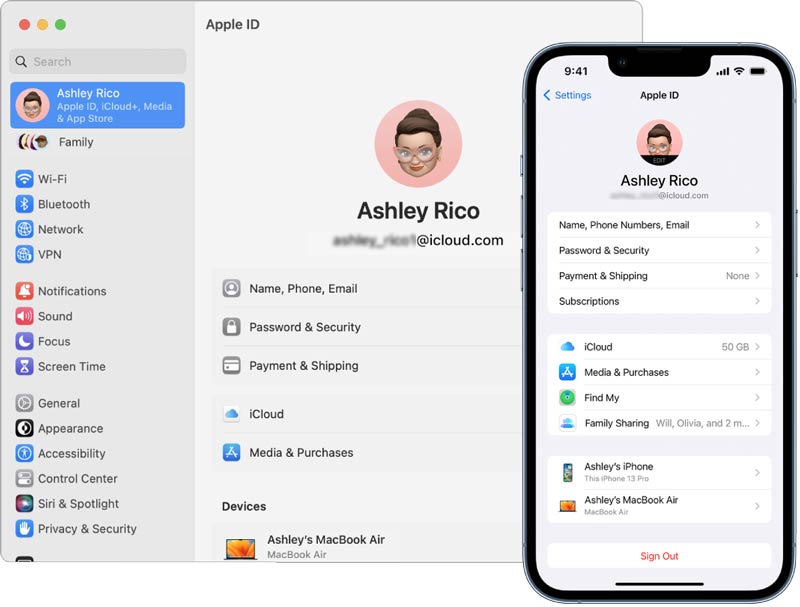
Se il problema è stato causato da errori di sincronizzazione, questo lo risolverà.
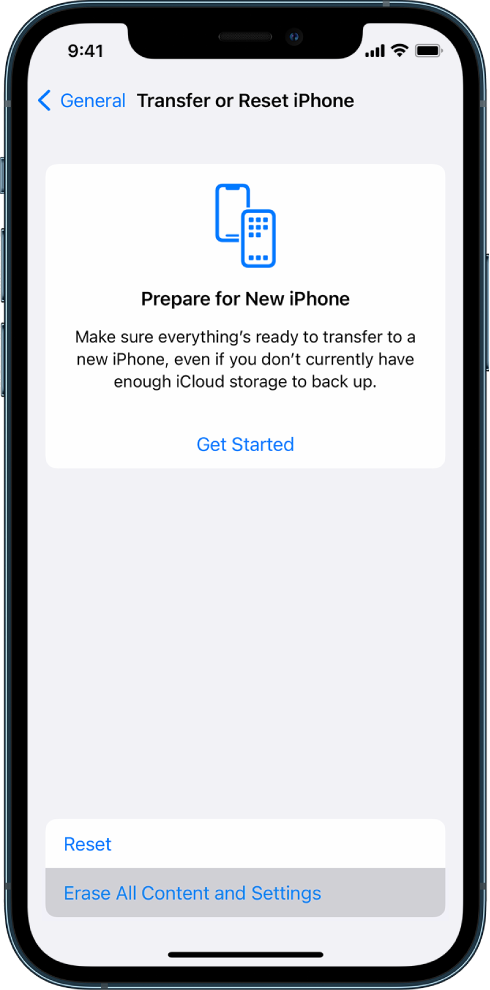
2.12 Ripristina iPhone
Se nient'altro funziona, un ripristino completo potrebbe risolvere errori di sistema profondi.
Esegui il backup del tuo iPhone
→
Ripristina tramite
Impostazioni → Generali → Trasferisci o ripristina iPhone → Cancella tutto il contenuto e le impostazioni →
Configurare nuovamente il dispositivo
3. Correzione avanzata e gestione della posizione errata dell'iPhone con AimerLab MobiGo
Se riscontri ancora aggiornamenti di posizione errati o se desideri un maggiore controllo sul sistema GPS del tuo iPhone, una soluzione avanzata come AimerLab MobiGo può aiutare.
MobiGo è un localizzatore GPS professionale per iOS che ti consente di modificare, bloccare o simulare la posizione del tuo dispositivo con un solo clic. Funziona senza jailbreak ed è ideale per la risoluzione dei problemi o la gestione di app basate sulla posizione.
Caratteristiche principali di AimerLab MobiGo:
- Cambia la posizione GPS in qualsiasi punto del mondo con un clic.
- Simula percorsi a piedi o in auto con velocità personalizzata.
- Blocca la tua posizione per impedire l'aggiornamento di Dov'è
- Funziona con Dov'è, Maps, giochi AR, Life360, app social e altro ancora
- Supporta sia i dispositivi iOS che Android.
Come usare MobiGo per correggere la posizione errata di Trova il mio iPhone:
- Scarica e installa AimerLab MobiGo sul tuo dispositivo Windows/Mac.
- Collega il tuo iPhone tramite USB e seleziona Fidati di questo computer se richiesto.
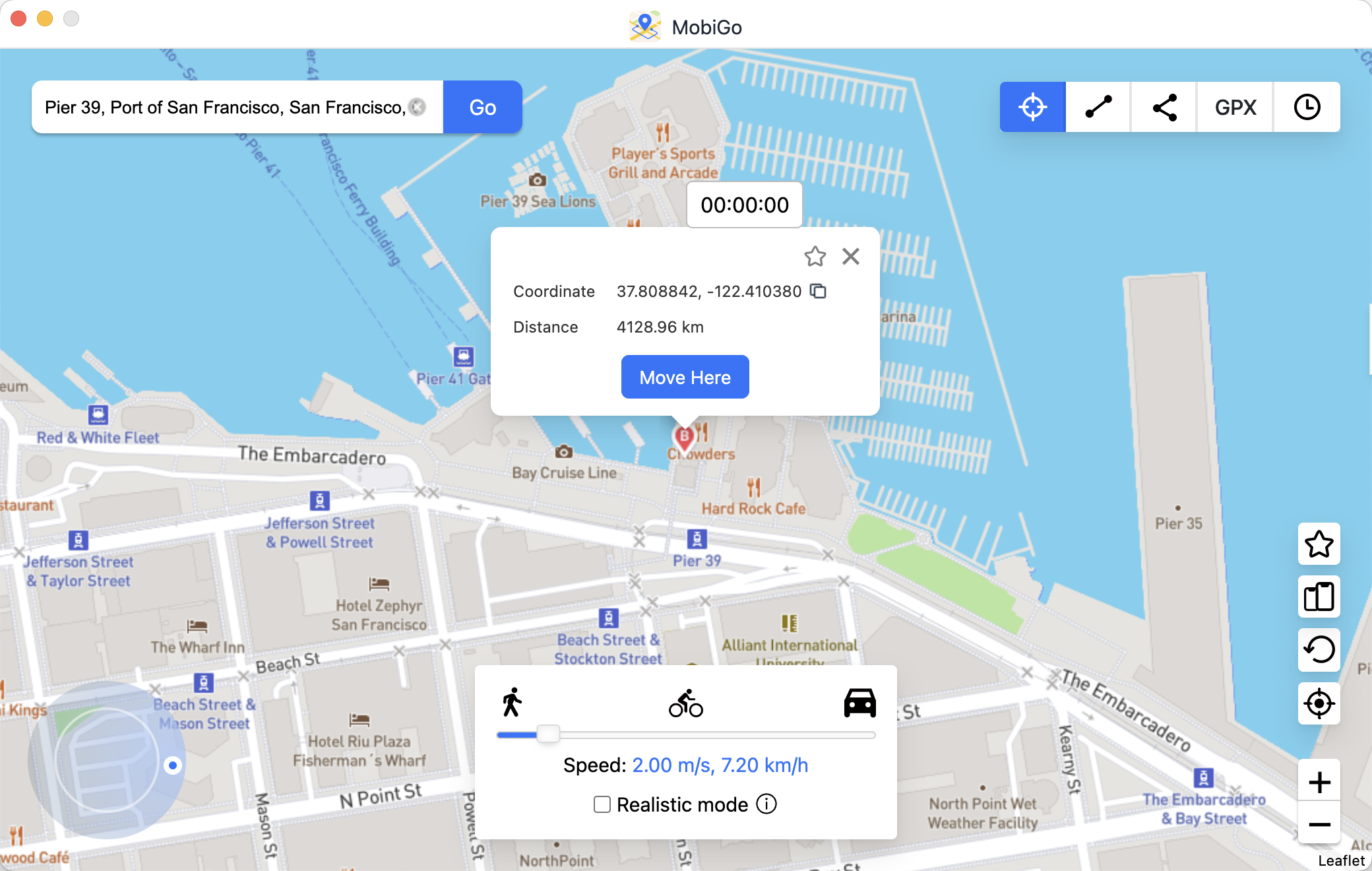
- Apri MobiGo e seleziona la modalità Teletrasporto, quindi cerca la posizione che desideri impostare.
- Fai clic su Sposta qui per aggiornare la posizione GPS del tuo iPhone.
- Apri Dov'è sul tuo iPhone o su un altro dispositivo: la posizione verrà aggiornata al nuovo punto (corretto).
3. Conclusione
Trova il mio iPhone è uno strumento potente, ma la localizzazione errata può verificarsi a causa di interferenze GPS, segnali di rete deboli, impostazioni disattivate, software obsoleti o problemi di sistema. Fortunatamente, la maggior parte dei problemi può essere risolta con semplici passaggi come l'attivazione dei servizi di localizzazione, l'attivazione del Wi-Fi, l'aggiornamento di iOS, il ripristino delle impostazioni di localizzazione o il miglioramento delle condizioni del segnale GPS.
Per gli utenti che desiderano un modo più avanzato, preciso e flessibile per gestire la posizione del proprio iPhone, o per risolvere i problemi persistenti di "Trova il mio", AimerLab MobiGo è la soluzione consigliata. Offre il pieno controllo dei dati GPS, aiuta a diagnosticare i problemi di posizione e offre potenti funzionalità per test, simulazioni e correzioni.
Se hai bisogno di un modo affidabile ed efficace per correggere i dati di posizione errati dell'iPhone,
MobiGo
è lo strumento migliore per migliorare e gestire le prestazioni GPS del tuo dispositivo.
Articoli caldi
- Perché la torcia del mio iPhone non funziona?
- Come risolvere il problema "iPhone aggiornato o mirroring di iPhone non funzionante"?
- Come risolvere l'errore 75 dell'iPhone?
- Come trovare le password su iPhone iOS 18?
- Perché il mio iPhone non squilla? Ecco le soluzioni efficaci per risolvere il problema
- La modalità aereo disattiva la posizione sull'iPhone?
Ulteriori letture
- Come falsificare Pokemon Go su iPhone?
- Panoramica dello spoofer di posizione GPS Aimerlab MobiGo
- Come cambiare posizione sul tuo iPhone?
- I 5 migliori spoofer di posizione GPS falsi per iOS
- Definizione del rilevatore di posizione GPS e suggerimento spoofer
- Come cambiare la tua posizione su Snapchat
- Come trovare/condividere/nascondere la posizione sui dispositivi iOS?